

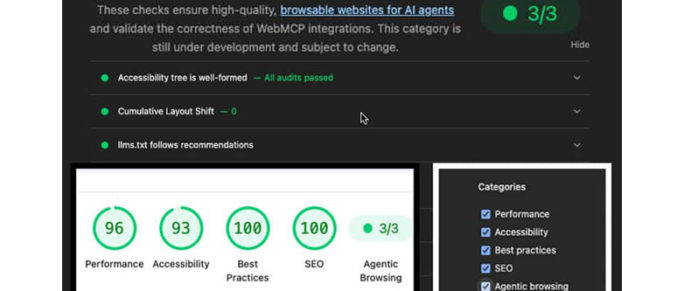
Google Introduces ‘Agentic’ Browsing in PageSpeed Insights V13.3
The way search engines and web traffic operate is undergoing a fundamental shift. Web analytics historically measured human page views, bounce rates, and click-through metrics. Today, autonomous AI agents—from Gemini-powered automated browsing features in Google Chrome to autonomous web assistants—are directly navigating the web, performing research, and executing complex user tasks on behalf of human users.
To accommodate this shift, Google introduced Agentic Browsing support in Lighthouse version 13.3 and PageSpeed Insights (PSI).
This gradually rolled out update introduces a dedicated audit category designed specifically to measure how easily an autonomous AI agent can parse, navigate, and interact with a website.
What Is Agentic Browsing and llms.txt?
Traditional search crawlers index static text for keyword matching. Agentic browsers, by contrast, act as programmatic users. They read your site’s DOM tree, evaluate interactive roles, and perform actions.
To help these agents navigate sites efficiently without wasting compute or scraping irrelevant markup, the open proposal at llmstxt.org introduced llms.txt—a lightweight, human-readable, and machine-friendly Markdown file placed at your domain root.
Google’s Lighthouse 13.3 update directly incorporates checks for this format. When running a PageSpeed Insights or Lighthouse report, the new Agentic Browsing tab evaluates four core criteria:
llms.txtPresence & Formatting: Validates that a well-formedllms.txtfile exists at the site root.- Accessibility Tree Integrity: Ensures form inputs, buttons, and structural elements have clear ARIA roles and semantic labels so non-visual agents can trigger actions.
- Cumulative Layout Shift (CLS): Verifies that elements do not shift visually during render, which can cause autonomous agents taking page snapshots to click incorrect coordinates.
- WebMCP Protocol Support: An experimental check evaluating whether a site explicitly exposes interactive form tools to machine agents via Web Model Context Protocol declarations.
What This Means for Businesses of All Sizes
Whether you operate a global enterprise, an e-commerce platform, or a localized small business, the emergence of agentic browsing represents a new paradigm in digital distribution.
Why You Should Adopt llms.txt
- Direct Agent Discovery: When a user asks an AI assistant to “find the best subscription tier for enterprise teams on Acme,” the agent fetches your
llms.txtfile first to obtain a precise directory of your canonical pricing and documentation URLs. - Reduced Server Overhead & Token Wastage: Stripping out heavy visual layouts, JavaScript bundles, and CSS frames allows AI agents to consume only the essential content markdown, saving bandwidth and improving processing speed.
- Competitive Advantage in AI Recommendations: Sites that provide structured, well-labeled maps for AI agents are far more likely to be accurately summarized and recommended during AI-driven search workflows.
- Search Engine Adoption: Major search engines like google, bing and duckduckgo have adopted the llms.txt already which is hooked into search result output.
What Happens If You Ignore It?
- Agent Misinterpretation: Without clear machine-readable context, AI agents may misinterpret product capabilities, scrape outdated staging pages, or hallucinate pricing tiers.
- Dropped Conversions: If an autonomous agent cannot parse your navigation tree or complete a form action due to poor accessibility structures or missing summaries, it will abandon the task or route the user to an agent-friendly competitor.
- Brand Conflation / Dilution: Without an authoritative llms.txt file for your domain in AI searches your brand can be bulked together and receive less weight in AI search output.
The Canonical llms.txt Example
The llms.txt specification requires a clean Markdown structure containing a clear top-level heading (#), a concise blockquote summary (>), categorized sections (##), and formatted list items (-) featuring full absolute URLs and brief page descriptions.
Below is the standard canonical format:
Markdown
# Acme Cloud Infrastructure

> High-performance compute, managed database clusters, and serverless hosting built for enterprise engineering teams.

Acme provides scalable cloud infrastructure with automated deployments, global edge distribution, and built-in security compliance for modern web applications.

## Core Pages

- [Home](https://example.com/): Official homepage detailing our core compute platform and cloud solutions.
- [Pricing](https://example.com/pricing): Comprehensive breakdown of developer, business, and enterprise plans.
- [About Us](https://example.com/about): Company overview, executive leadership, and contact information.

## Documentation & Developer Resources

- [Quickstart Guide](https://example.com/docs/quickstart): Step-by-step setup guide for deploying your first cluster.
- [API Reference](https://example.com/docs/api): REST API endpoints, rate limits, and authentication protocols.
- [CLI Tooling](https://example.com/docs/cli): Installation and usage guides for the Acme command line interface.

## Legal & Compliance

- [Privacy Policy](https://example.com/privacy): Data handling practices and privacy compliance commitments.
- [Terms of Service](https://example.com/terms): Legal terms governing platform usage and SLA guarantees.
Architectural Considerations: Apex Domains, Subdomains, and Static Files
Once your file is formatted, serving it correctly across modern web architectures requires careful planning—especially when dealing with multi-domain setups or localized top-level domains (TLDs).
1. Root Directory Requirement
AI crawlers and automated tools check llms.txt strictly against the domain root:
[https://yourdomain.com/llms.txt](https://yourdomain.com/llms.txt)
Serving the file under a subfolder (e.g., [https://yourdomain.com/assets/llms.txt](https://yourdomain.com/assets/llms.txt)) will cause the PageSpeed Insights audit to fail.
2. Apex Domains vs. Subdomains
- Apex Domains (
example.com): Must host the primary index file mapping your main brand assets. - Subdomains (
docs.example.com,app.example.com): Automated crawlers checking a subdomain will perform a GET request specifically against[https://docs.example.com/llms.txt](https://docs.example.com/llms.txt). You should either serve an independentllms.txton each subdomain or issue a clean HTTP redirect to your primary apex file.
3. The Danger of “Static” Files in Multi-Domain or Multi-TLD Environments
If your application serves multiple international TLDs (example.com, example.co.uk, example.de) or white-label customer tenants from the exact same web root or application server, dropping a hardcoded static llms.txt into your public folder creates severe canonical mismatches.
For instance, a static file containing [https://example.com/pricing](https://example.com/pricing) served when an agent requests [https://example.co.uk/llms.txt](https://example.co.uk/llms.txt) results in broken cross-domain references.
Implementation & Redirect Strategies
Depending on your web server or application framework, you can handle simple file redirects or dynamically generate host-aware llms.txt responses.
Apache (.htaccess / VirtualHost)
Simple 301 Redirect:
Apache
Redirect 301 /llms.txt /my-llms.txt
Using mod_rewrite:
Apache
RewriteEngine On
RewriteRule ^llms\.txt$ /my-llms.txt [R=301,L]
NGINX
Simple Alias / Redirect:
Nginx
location = /llms.txt {
    return 301 /my-llms.txt;
}
Dynamic Host Substitution (Multi-TLD Setup):
If you host multiple TLDs from one web root, use NGINX’s sub_filter to dynamically swap the domain in the static file based on the incoming request header:
Nginx
location = /llms.txt {
    root /var/www/html;
    default_type text/plain;
    sub_filter 'https://example.com' '$scheme://$host';
    sub_filter_once off;
}
Node.js / Next.js Dynamic Route
For modern web applications, serving llms.txt via a dynamic route ensures absolute URLs always adapt to the incoming host header:
TypeScript
// app/llms.txt/route.ts
export async function GET(request: Request) {
  const host = request.headers.get('host') || 'example.com';
  const protocol = request.headers.get('x-forwarded-proto') || 'https';
  const baseUrl = `${protocol}://${host}`;

  const markdownContent = `# Acme Infrastructure (${host})

> Scalable cloud compute and managed database platform.

## Core Pages

- [Home](${baseUrl}/): Official homepage for ${host}.
- [Pricing](${baseUrl}/pricing): Regional pricing plans and service tiers.
- [Docs](${baseUrl}/docs): Platform integration and API documentation.
`;

  return new Response(markdownContent, {
    headers: {
      'Content-Type': 'text/plain; charset=utf-8',
      'Cache-Control': 'public, max-age=3600',
    },
  });
}
How to Test and Verify Your Setup
Once deployed, verify that your implementation satisfies both technical headers and automated scoring criteria using Developer Tools and CLI commands.
1. Terminal / cURL Check
Run a cURL request against your domain to inspect HTTP status codes, headers, and output text:
Bash
curl -iL https://yourdomain.com/llms.txt
What to look for:
- HTTP Status:
200 OK(or a301 Moved Permanentlythat successfully resolves to a200 OK). - Content-Type Header: Must return
text/plainortext/markdown. - Output: Clean Markdown string with absolute URLs.
2. Chrome DevTools (F12) Inspection
- Open Google Chrome and navigate to your website.
- Press
F12(orCmd + Option + Ion macOS) to open DevTools. - Select the Network tab.
- Type
llms.txtin the browser URL bar and hit enter. - Click the
llms.txtentry in the Network tab:- Under Headers, confirm the
Status Codeis200andContent-Typeistext/plain. - Under Response, verify that no HTML wrapper tags, JS scripts, or missing assets were injected.
- Under Headers, confirm the
3. PageSpeed Insights / Lighthouse Audit
Verify that the llms.txt present and llms.txt well-formed checks show passing green indicators.
Navigate to PageSpeed Insights.
Enter your full site URL ([https://yourdomain.com](https://yourdomain.com)) and run the report.
Scroll to the Agentic Browsing section under the Lighthouse diagnostic panel.